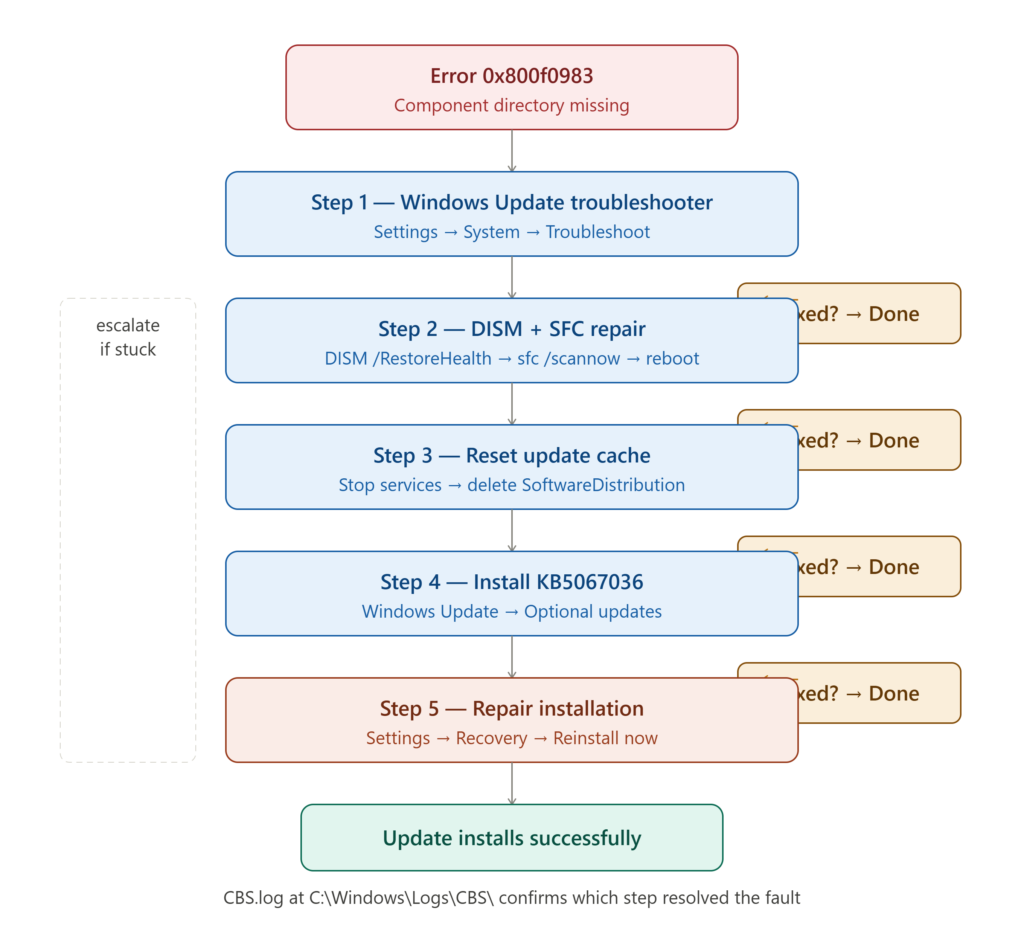
Few things derail a productive workday faster than a Windows Update that refuses to install. Error 0x800f0983 has become one of the most frustrating recurring failures across Windows 11 and Windows Server environments, surfacing during cumulative security patches and feature updates alike. The error points directly to a corrupted or incomplete Windows Component Store — the internal file system Windows depends on to apply updates correctly.
Whether you’re a home user trying to keep your system secure or an IT administrator managing dozens of endpoints, this error demands a structured response. Blindly retrying the update never solves it. This guide delivers every verified fix in priority order, explains exactly why each step works, and equips you to prevent the error from returning on your machine.
What Windows Update Error 0x800f0983 Actually Means
The error code 0x800f0983 maps directly to a servicing fault called PSFX_E_MATCHING_COMPONENT_DIRECTORY_MISSING. In plain language, Windows searched its Component Store (the WinSxS folder) for a specific file directory it needed to apply an update — and that directory simply wasn’t there.
This is not a network error or a permission problem. It is a structural integrity failure inside the operating system’s own update engine. The issue became especially widespread on machines upgraded from Windows 10 to Windows 11 24H2 or 25H2 via tools like SCCM or Rufus, where partial feature installations left orphaned or half-built component directories that subsequent cumulative updates cannot reconcile.
Why Retrying the Update Without a Fix Never Works
Hitting the Retry button in Windows Update feels logical but delivers nothing when the underlying component store is broken. Windows Update reads the same damaged file paths on every attempt and throws the same fault. Users seeking expert digital insights on persistent Windows errors consistently confirm that only structural repairs — not retries — break the cycle. The CBS.log file located at C:\Windows\Logs\CBS\CBS.log records every failed attempt in detail.
Reading it reveals entries like Component directory missing alongside specific package identifiers, giving you exact evidence of which WinSxS paths are broken rather than forcing you to guess blindly at a solution.
Fix 1: Run the Windows Update Troubleshooter First
Before touching the command line, run Microsoft’s built-in diagnostic. On Windows 11, navigate to Settings → System → Troubleshoot → Other troubleshooters and launch the Windows Update troubleshooter. On Windows 10, find it under Settings → Update & Security → Troubleshoot → Additional troubleshooters. This tool automatically detects stalled services, locked update files, and corrupted cache entries.
It won’t repair a broken WinSxS in severe cases, but it reliably clears the most common surface-level triggers — stalled Background Intelligent Transfer Service (BITS) jobs, frozen Windows Update service states, and basic connectivity blocks — saving you from running deeper commands unnecessarily.
Fix 2: Repair the Component Store With DISM and SFC
Open Command Prompt as Administrator and run these commands in sequence. Each one targets a progressively deeper layer of system file integrity.
DISM /Online /Cleanup-Image /CheckHealth— reads the store for known flagsDISM /Online /Cleanup-Image /ScanHealth— performs a full corruption scanDISM /Online /Cleanup-Image /RestoreHealth— downloads and replaces damaged filessfc /scannow— scans protected OS files and replaces corrupted ones from cache- Reboot and retry Windows Update
If DISM returns “source files not found,” mount a matching Windows ISO and run: DISM /Online /Cleanup-Image /RestoreHealth /Source:X:\Sources\install.wim /LimitAccess
Fix 3: Reset the Windows Update Component Cache
A corrupted update cache is a separate problem from a broken WinSxS. Clearing it forces Windows to rebuild its download queue from scratch. Open an elevated Command Prompt and stop the relevant services, then clear the cache folders manually.
net stop wuauserv
net stop bits
net stop cryptsvc
net stop msiserver
Navigate to C:\Windows\SoftwareDistribution\Download\ and delete all contents. Then restart all four services using net start for each. Alternatively, run these steps via elevated PowerShell using Stop-Service and Rename-Item to rename the SoftwareDistribution folder to SoftwareDistribution.old, forcing Windows to build a fresh one on the next update cycle.
Platform CTR Benchmarks for Windows Fix Content
| Platform | Avg. CTR for Tech Fix Articles | Best Format | Optimal Word Count |
|---|---|---|---|
| Google Search | 7.1% – 9.8% | Step-by-step command guides | 1,100 – 1,600 words |
| Bing Search | 5.3% – 8.1% | Structured FAQ articles | 900 – 1,300 words |
| YouTube | 5.0% – 7.6% | Screen-recorded fix walkthroughs | 5 – 10 minutes |
| 9.4% – 13.2% | Diagnostic thread answers | Conversational depth | |
| Microsoft Q&A | 6.8% – 11.0% | Verified solution posts | Concise + command blocks |
Design Psychology Behind Effective Tech Fix Content
High-performing troubleshooting articles follow a specific structural psychology that keeps frustrated users engaged instead of bouncing:
- Lead with cause, not just symptoms — Users who understand why an error happens trust the fix more and execute steps more carefully.
- Command blocks over prose instructions — Copyable code reduces human error and signals authority to technically literate readers.
- Progressive complexity ordering — Start with the easiest fix. Users who solve the problem early don’t need the advanced steps, reducing cognitive overload.
- Explicit reboot checkpoints — Telling users exactly when to restart prevents skipped steps that invalidate subsequent fixes.
- CBS.log as proof — Directing users to the actual log file builds trust because it shows where the diagnosis comes from, not just what to do.
Fix 4: Install the Official Microsoft Patch KB5067036
Microsoft officially acknowledged the 0x800f0983 bug and released a direct fix embedded in the non-security update KB5067036 for Windows 11 versions 24H2 and 25H2. This update, released in October 2025, specifically addresses the underlying component store bug that prevents cumulative updates from installing. If your system can receive optional updates, navigate to Settings → Windows Update → Advanced options → Optional updates and install KB5067036 directly. This patch also resolves the separate “Update and Shutdown” restart bug and fixes Media Creation Tool failures on Arm64 devices, making it worth installing independently of the 0x800f0983 error.
When to Use a Repair Installation as the Final Option
If DISM, SFC, and cache resets all fail, the WinSxS corruption is too deep for in-place tools to repair. A repair installation — also called an in-place upgrade — reinstalls Windows system files without erasing your personal data, applications, or settings. On Windows 11, navigate to Settings → System → Recovery and under “Fix problems using Windows Update,” select Reinstall now. Alternatively, mount a Windows 11 ISO matching your exact build version and run setup.exe, choosing to keep personal files and apps. This approach has resolved persistent 0x800f0983 cases where every command-line fix was exhausted, and it remains far preferable to a full clean installation.
Conclusion
The Windows Update error 0x800f0983 is a solvable problem once you understand that it lives inside the Component Store, not the network stack or your account permissions. Working through the troubleshooter, DISM and SFC repair sequence, update cache reset, and the KB5067036 patch resolves the overwhelming majority of reported cases.
Reserve the repair installation for machines where all else fails. Document which fix worked using your CBS.log before and after — that log is your most reliable diagnostic compass for any future Windows servicing failure on the same machine.
FAQ: Windows Update Error 0x800f0983 — Top Questions Answered
1. Why does Windows Update error 0x800f0983 keep coming back after every new cumulative update?
Recurring 0x800f0983 errors typically indicate that the root WinSxS corruption was never fully repaired — only temporarily bypassed. If DISM restored some files but missed others, each new update that touches those same corrupted component paths will trigger the error again. The permanent fix requires either running DISM with a mounted ISO as the repair source (more reliable than Windows Update as a source) or performing a repair installation that rebuilds all system component directories from scratch.
2. Can the 0x800f0983 error appear on Windows Server 2025 as well as Windows 11?
Yes. Microsoft confirmed this error on Windows Server 2025 systems specifically in relation to the April 2026 security update KB5082063, tracking it under known issue WI1281095.
The fix process mirrors the Windows 11 approach — resetting the update component store via PowerShell and running DISM — but server administrators should check the Windows release health dashboard before applying manual patches, as Microsoft may release an out-of-band update that is safer to deploy across domain controllers and managed endpoints.
3. Does the CBS.log file actually help diagnose what’s broken, and how do I read it correctly?
The CBS.log file at C:\Windows\Logs\CBS\CBS.log is the most precise diagnostic tool available for this error. Open it in Notepad or a text editor and search for 0x800f0983 or PSFX_E_MATCHING_COMPONENT_DIRECTORY_MISSING.
The surrounding lines will identify the exact package name and the specific component directory path that Windows cannot find. This tells you which Windows feature or update package is corrupted, giving repair tools a precise target rather than requiring a full system scan.
4. Will clearing the SoftwareDistribution folder delete important Windows files I need?
No. The SoftwareDistribution folder is a temporary download cache — not a permanent system file store. Deleting its contents only removes partially downloaded update packages and metadata files. Windows automatically rebuilds the folder and re-downloads whatever it needs on the next update check.
You will not lose any installed programs, personal files, system settings, or previously applied updates. The only practical effect is that the next Windows Update check may take slightly longer as it rebuilds its list of available updates from Microsoft’s servers.
5. Is there a way to manually download and install the failed cumulative update to bypass error 0x800f0983?
Yes. Visit the Microsoft Update Catalog at catalog.update.microsoft.com, search for the specific KB number that failed, download the standalone .msu installer matching your Windows version and architecture (x64, ARM64), and run it directly using wusa.exe /install KB_filename.msu.
This method bypasses the Windows Update service entirely and installs directly against the component store. However, if the WinSxS is corrupted, the standalone installer will fail with the same error — meaning DISM repair must precede this approach for it to succeed.

