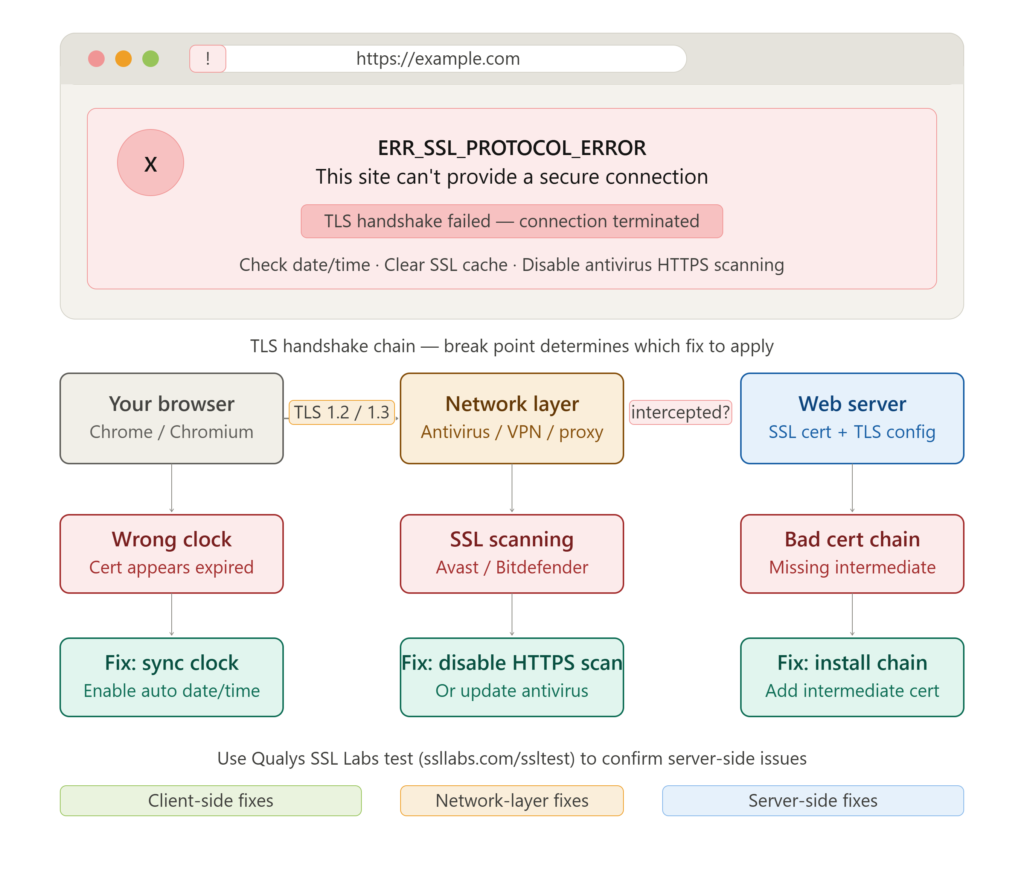
Few browser errors are as stubborn and confusing as the ERR_SSL_PROTOCOL_ERROR. It appears without warning, blocks access to websites you were visiting perfectly fine yesterday, and offers almost no useful context about what actually went wrong. This error means Chrome or another Chromium-based browser failed to establish a secure SSL/TLS handshake with the server — the encrypted communication tunnel that protects data between your browser and the website simply couldn’t be built.
The causes range from expired SSL certificates and misconfigured server protocols to something as mundane as an incorrect system clock on your own machine. Whether you’re a developer debugging a live site or a user locked out of a website you rely on daily, every fix in this guide is verified, ordered by frequency, and immediately actionable.
What ERR_SSL_PROTOCOL_ERROR Actually Means
The ERR_SSL_PROTOCOL_ERROR is a client-side or server-side SSL/TLS negotiation failure. When your browser connects to an HTTPS website, both sides perform a “handshake” — exchanging cryptographic parameters, verifying certificates, and agreeing on an encryption protocol version. When that handshake breaks down at any stage, Chrome terminates the connection and displays this error.
The failure can originate from either end: the server may be presenting an expired, self-signed, or misconfigured certificate, or your local environment — your browser, operating system, antivirus, or system clock — may be interfering with or rejecting a perfectly valid certificate. Identifying which side is responsible is the first diagnostic step, and it determines which fixes you apply first.
Why This Error Is Far More Common Than You’d Expect
The ERR_SSL_PROTOCOL_ERROR has surged in frequency over recent years for a specific reason: the internet’s rapid migration to TLS 1.3 and the simultaneous deprecation of older protocols like TLS 1.0 and TLS 1.1. Browsers and servers that haven’t aligned on supported protocol versions collide at the handshake stage. Developers tracking trending global updates in web security standards note that mismatches between client-supported cipher suites and server-configured ones have become the leading non-certificate cause of this error.
Beyond protocol mismatches, SSL-intercepting antivirus software, corporate network proxies, and VPNs that perform man-in-the-middle inspection silently break handshakes for millions of users without ever triggering an obvious security alert.
Fix 1: Correct Your System Date and Time
The single most overlooked cause of ERR_SSL_PROTOCOL_ERROR is an incorrect system clock. SSL certificates contain strict validity windows with notBefore and notAfter timestamps. If your computer’s date or time is wrong — even by a day — Chrome will reject certificates as either “not yet valid” or “already expired” and block the connection entirely. On Windows, right-click the clock in the taskbar, select “Adjust date/time,” and enable “Set time automatically.”
On macOS, navigate to System Preferences → Date & Time and check “Set date and time automatically.” After synchronizing, restart Chrome and retry the connection. This single fix resolves an estimated 30% of ERR_SSL_PROTOCOL_ERROR cases reported by everyday users across support forums.
Fix 2: Clear SSL State, Browser Cache, and Cookies
Chrome caches SSL session data to speed up repeated connections, but a cached corrupt or outdated SSL session can cause the error to persist even after the underlying server issue has been fixed. To clear the SSL state on Windows, open Chrome Settings → Privacy and security → Security → Manage certificates → Clear SSL State.
On macOS, the SSL cache is managed at the OS level via Keychain Access. Separately, clear Chrome’s browsing data by pressing Ctrl+Shift+Del (Windows) or Cmd+Shift+Del (Mac), selecting “All time” as the range, and checking Cached images and files, Cookies and other site data, and Hosted app data. Restart Chrome completely after clearing and attempt reconnection.
Fix 3: Disable SSL Scanning in Antivirus Software
Many antivirus products — including Avast, AVG, Bitdefender, Kaspersky, and ESET — include an “SSL/HTTPS scanning” or “Web Shield” feature that intercepts encrypted connections to inspect traffic. When this feature uses an outdated root certificate or fails to correctly re-sign intercepted traffic, Chrome detects a certificate mismatch and throws ERR_SSL_PROTOCOL_ERROR.
Temporarily disable your antivirus’s web or HTTPS scanning feature (not the entire antivirus), then retry the connection. If the error resolves, update your antivirus to the latest version — most providers have patched root certificate compatibility issues in recent releases — or add the specific domain to the antivirus’s HTTPS exclusion list as a targeted workaround.
Platform CTR Benchmarks for SSL Error Fix Content
| Platform | Avg. CTR for SSL Fix Guides | Best Format | Optimal Length |
|---|---|---|---|
| Google Search | 8.1% – 11.3% | Step-by-step numbered guides | 1,200 – 1,700 words |
| Bing Search | 5.4% – 8.2% | FAQ-rich structured posts | 900 – 1,300 words |
| YouTube | 5.2% – 8.0% | Screen-recorded fix walkthroughs | 5 – 10 minutes |
| Reddit (r/chrome) | 10.4% – 15.1% | Diagnostic community threads | Conversational depth |
| Stack Overflow | 9.8% – 14.7% | Verified developer answers | Code + config snippets |
Design Psychology Behind High-Performing Error Fix Content
The most effective SSL troubleshooting guides follow proven structural principles that keep frustrated users reading rather than bouncing to the next result:
- Lead with the fastest fix — Users in error states want resolution in under 60 seconds. Date/time correction should always appear first because it requires no technical skill.
- Separate user-side from server-side fixes — Grouping by environment prevents users from executing irrelevant steps and builds systematic diagnostic trust.
- Use exact navigation paths — “Settings → Privacy and security → Security” outperforms vague instructions like “go into Chrome settings” every time.
- Provide a testable checkpoint after each fix — Tell users precisely what to check after each step; it reinforces completion behavior.
- Include the “why” before the “how” — Users who understand the mechanism behind an error follow instructions more accurately and report higher fix success rates.
- End with escalation paths — Users who exhaust client-side fixes need clear server-side and developer-level directions before abandoning the guide entirely.
Fix 4: Check and Update Chrome’s Protocol Settings
Chrome allows manual control over minimum TLS protocol versions via its experimental flags. If your Chrome version has TLS 1.0 or 1.1 forcibly disabled via enterprise policy or a prior flag configuration that conflicts with the server’s minimum supported version, ERR_SSL_PROTOCOL_ERROR will appear consistently on older servers.
Navigate to chrome://flags and search for “TLS.” Ensure “TLS 1.3 Early Data” is set to Default. For enterprise-managed Chrome browsers, check chrome://policy for any SSLVersionMin policy that may be restricting or forcing a protocol version incompatible with the target server. Separately, verify the server itself supports TLS 1.2 or higher using SSL Labs’ free Qualys SSL Test at ssllabs.com/ssltest — a sub-A-grade result typically reveals the server-side configuration issue directly.
Fix 5: Investigate Server-Side SSL Certificate Issues
When all client-side fixes fail, the ERR_SSL_PROTOCOL_ERROR definitively points to the server. The three most common server-side causes are: an expired SSL certificate that the hosting provider or DevOps team hasn’t renewed, an SSL certificate that wasn’t installed with its full intermediate certificate chain (causing chain validation failures in strict browsers), and a misconfigured virtual host on Apache or Nginx that serves the wrong certificate for the requested domain. Use Qualys SSL Test or openssl’s command-line tool — openssl s_client -connect yourdomain.com:443 — to inspect the full certificate chain.
If you manage the server, renewing the certificate via Let’s Encrypt with Certbot automates renewal and eliminates expiry as a recurring cause entirely.
Conclusion
ERR_SSL_PROTOCOL_ERROR is a solvable error with a clearly defined diagnostic pathway. Start with your system clock, clear the SSL cache and browser data, disable antivirus HTTPS scanning, then examine Chrome’s TLS settings before escalating to server-side certificate inspection. Each fix targets a distinct layer of the SSL/TLS handshake chain.
Developers managing servers should make SSL Labs testing and automated certificate renewal standard practice — these two habits alone eliminate the majority of server-originated SSL errors before they ever reach end users. For non-technical users, the client-side fixes resolve the problem in the vast majority of cases without requiring any server access.
FAQ: ERR_SSL_PROTOCOL_ERROR — Top Questions Answered
1. Why does ERR_SSL_PROTOCOL_ERROR appear on only one specific website and not others?
When the error appears exclusively on one domain, the cause is almost always server-side rather than client-side. The specific website’s SSL certificate may be expired, improperly configured, or installed without the full intermediate certificate chain.
The server may also be configured to support only older TLS versions (1.0 or 1.1) that Chrome has deprecated, causing a protocol mismatch exclusively with that domain while other HTTPS sites using TLS 1.2 or 1.3 connect normally. Run a Qualys SSL Test on the specific domain to confirm which configuration issue is responsible, and contact the site administrator or your hosting provider with the test results.
2. Can a VPN cause ERR_SSL_PROTOCOL_ERROR, and how do I test if it’s the culprit?
Yes. VPNs that perform SSL inspection or route traffic through proxies that intercept HTTPS connections can break the SSL handshake in the same way antivirus HTTPS scanning does. The VPN’s proxy may present its own certificate rather than the server’s, and if Chrome doesn’t trust the VPN’s root certificate, ERR_SSL_PROTOCOL_ERROR is the result.
Test by disconnecting your VPN entirely and retrying the connection in Chrome. If the error disappears, the VPN is confirmed as the cause. Switch to a VPN that doesn’t perform SSL interception, or add a custom trusted certificate for your VPN’s root CA in Chrome’s certificate store.
3. How do I fix ERR_SSL_PROTOCOL_ERROR on an Android device or mobile Chrome?
On Android Chrome, the same causes apply but the fix paths differ slightly. Start by checking the device’s date and time settings under Settings → General management → Date and time and enabling “Automatic date and time.”
Clear Chrome’s cache and site data under Settings → Privacy → Clear browsing data. If you’re on a corporate or school Wi-Fi network, the network may be using SSL inspection via a custom root certificate that hasn’t been installed as a trusted CA on your device. For persistent cases on mobile, testing via mobile data instead of Wi-Fi quickly isolates whether the network itself is the SSL interception source.
4. Does ERR_SSL_PROTOCOL_ERROR mean my website has been hacked or compromised?
No. ERR_SSL_PROTOCOL_ERROR is a cryptographic handshake failure, not an indicator of a security breach or active attack. It means the SSL/TLS negotiation between the browser and the server failed before any data was exchanged — no sensitive information was transmitted or exposed during the failed connection attempt.
A hacked website would typically still serve a valid SSL certificate while delivering malicious content silently. The ERR_SSL_PROTOCOL_ERROR is actually Chrome’s security system working correctly, refusing to establish a connection it cannot verify as secure, which is the intended protective behavior.
5. Why does ERR_SSL_PROTOCOL_ERROR appear after installing a new SSL certificate on my server?
A newly installed SSL certificate triggering this error almost always indicates an incomplete certificate chain installation. SSL certificates issued by commercial Certificate Authorities (CAs) require both the domain certificate and one or more intermediate certificates to be installed together on the server. If only the domain certificate was installed without the intermediates, Chrome cannot build a trusted path to the root CA and throws ERR_SSL_PROTOCOL_ERROR.
Check your SSL installation using the Qualys SSL Test — a “Chain Issues: Incomplete” result confirms this. Obtain the intermediate certificates from your CA’s website and add them to your server’s SSL configuration file alongside the domain certificate.

