301 vs 404 Explained: What Happens to Old URLs?
Every website loses URLs over time — pages get deleted, products get discontinued, blog posts get merged. What happens next determines whether that old URL quietly disappears with no consequence, or drags your rankings down with it. For beginners, the two outcomes hinge on a single technical decision: does the server respond with a 301 or a 404? This guide breaks down exactly what each one means, in plain language, with real examples you can check yourself.
If you’ve ever clicked an old bookmark and landed on a “Page Not Found” screen, or been smoothly redirected to a new page without noticing, you’ve already experienced both status codes firsthand.
The Core Concept: What Is a Status Code?
Every time a browser or search engine crawler requests a URL, the server replies with a three-digit HTTP status code before sending any content. This code is invisible to most users but critical to how Google interprets the page.
- 200 OK — the page exists and loads normally
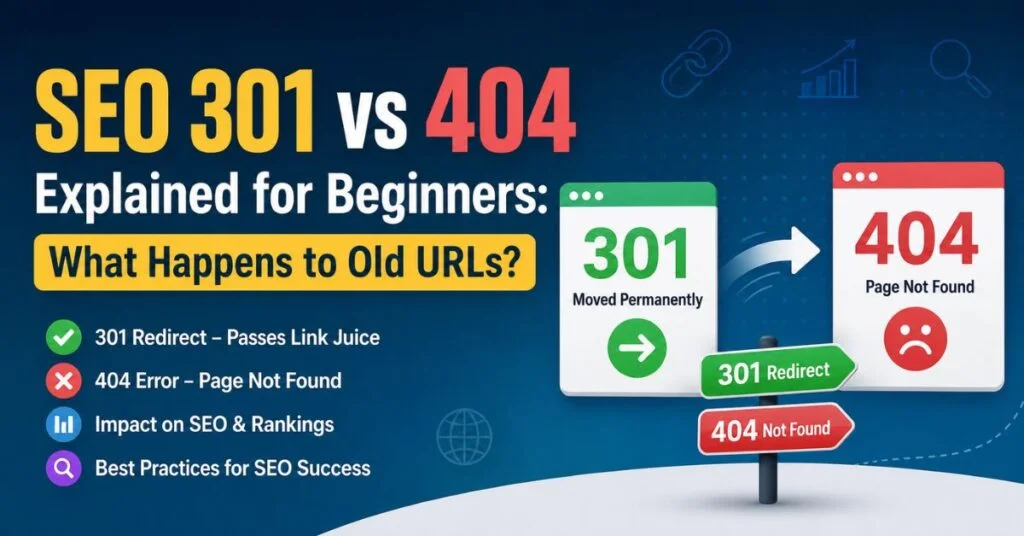
- 301 Moved Permanently — the page has relocated to a new URL
- 404 Not Found — the page does not exist at this URL
You can see these codes yourself using your browser’s DevTools (Network tab) or free tools like httpstatus.io.

301: The “We Moved” Signal
When you visit a URL that has been permanently redirected, the server responds:
HTTP/1.1 301 Moved Permanently
Location: https://example.com/new-address/
Your browser follows this automatically and lands you on the new page — often so fast you never notice a redirect happened. For search engines, this is the equivalent of filing a permanent change-of-address form: Google understands the old URL’s ranking history, backlinks, and relevance should now count toward the new URL.
Real-world beginner example: You rename a blog post’s URL from /best-laptops-2023/ to /best-laptops-2024/. Without a 301, Google treats /best-laptops-2023/ as gone and /best-laptops-2024/ as a brand-new page with zero history. With a 301 in place, the new URL inherits the old page’s ranking strength.
404: The “This Doesn’t Exist” Signal
When a page has been deleted with no replacement, the server responds:
HTTP/1.1 404 Not Found
Content-Type: text/html
There’s no forwarding address — the browser simply displays your site’s 404 error page (ideally a helpful one with navigation links, not a blank dead end). Google eventually removes that URL from its index entirely.
Real-world beginner example: You discontinue a seasonal product with no equivalent replacement. Returning a 404 is accurate and expected — there’s nothing to redirect the customer to.
Side-by-Side Comparison for Beginners
| Question | 301 Redirect | 404 Error |
|---|---|---|
| Does the content still exist somewhere? | Yes, at a new URL | No, it’s gone |
| Does the visitor get forwarded? | Yes, automatically | No, they see an error page |
| Does Google keep the ranking history? | Yes, mostly transferred | No, history is lost |
| Should you use it for renamed pages? | Yes | No |
| Should you use it for deleted content? | No | Yes |
| Is it a sign of a “broken” website? | No | Not if used correctly |
How to Check Which One a URL Is Using
- Right-click the page and select “Inspect,” then open the Network tab.
- Reload the page.
- Click the first request in the list — the Status column shows the code (200, 301, 404, etc.).
- Alternatively, paste the URL into a free header-checking tool like httpstatus.io for a no-code option.

A Simple Decision Workflow for Beginners
- Did the page move to a new URL, or is there a very similar replacement? → Use a 301 redirect pointing to that new URL.
- Was the content deleted entirely with nothing similar to send visitors to? → Let it return a 404 naturally.
- Never redirect every dead page to your homepage — Google recognizes this pattern and treats it as a “soft 404,” meaning it provides no real SEO benefit and can frustrate visitors looking for specific content.
- On WordPress, install the free Redirection plugin, add the old and new URLs, and set the type to “301 – Moved Permanently.”
Technical Takeaways
- A 301 preserves ranking signals; a 404 does not.
- Redirects should only point to genuinely relevant replacement content, never generic pages.
- A reasonable number of 404s on a website is completely normal and not a red flag to Google.
- Beginners can verify status codes in seconds using browser DevTools or free online checkers.
- WordPress users don’t need to touch server files directly — plugins like Redirection handle 301s safely.
Where This Fits Into the Bigger Picture
Understanding individual 301s and 404s is the first step — but managing them correctly across an entire website requires a more structured approach. For the complete framework on auditing, mapping, and maintaining redirects at scale, see our detailed guide on 301 redirects and 404 error management.
Conclusion
For beginners, the distinction is simple: a 301 says “this moved, follow me,” while a 404 says “this is gone.” Using the right one protects your search rankings, keeps visitors from hitting dead ends, and signals to Google that your site is well maintained. When in doubt, ask one question — does a real replacement page exist? If yes, redirect. If no, let it 404.
FAQ
Q: Is it bad for my website to have any 404 errors at all?
A: No. Occasional 404s are a normal part of running a website and are not penalized by Google on their own.
Q: What happens if I don’t set up a redirect after changing a URL?
A: Visitors and search engines hit a 404, and any ranking value the old URL had is lost instead of transferred.
Q: Can I set up a 301 redirect without touching code?
A: Yes. On WordPress, plugins like Redirection let you create 301 redirects through a simple dashboard interface.
Q: How do I know if a redirect is working correctly?
A: Check the Network tab in your browser’s DevTools, or use a free status code checker tool, to confirm the response shows “301” and lands on the correct final URL.

